Whether you are using the chatbot or the source setup form, you need to describe to Changeflow exactly what changes you are interested in for the URLs you are monitoring. This is the most important part of source setup and the key to getting just the notifications you want without any noise. If you are using the form for setup then it's the What's important to you? setting that we're talking about here.
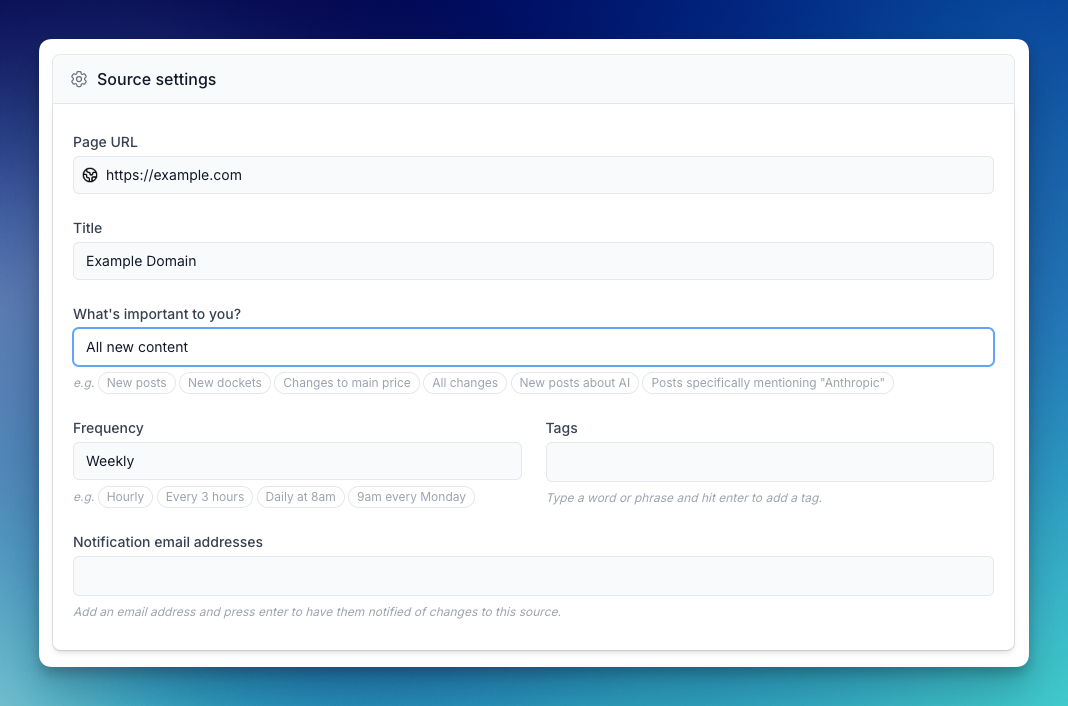
Below we go into detail on the many ways you can describe to Changeflow exactly what it should be looking for. Remember the exact wording is not crucial - we use AI which is great at understanding what you mean from any plain English, so just describe what you want.
Start by thinking about the source
Your prompt is a filter on top of the source. Before you write a word, ask: what does this source already cover? Then: which slice of that do I actually want?
This matters because it changes the kind of prompt that works best.
If the source is already focused on your topic (a single company's newsroom, a drug regulator, a legal alerts feed on one area of law), don't re-state the topic. The source has already filtered for you. Describe the type of update you want instead.
-
Less good: Apple news on apple.com/newsroom - everything on that page is Apple news.
-
Better: New press releases, particularly product launches and financial announcements on the same page.
-
Less good: Drug approval news on the FDA drug approvals page - the entire page is drug approvals.
-
Better: New drug approvals, with drug name, therapeutic area, and approved indications on the same page.
If the source is broad (a global job board, a news portal, a search results page), you need to narrow it. Country, role, qualifier, keywords - be specific.
- Less good: Environmental jobs on indeed.com/jobs - too loose, you'll get listings worldwide.
- Better: UK-based environmental consultant roles paying over £40k on the same page.
Get the source right first, and every other prompting decision gets easier.
Start broad, then narrow
A good strategy, especially when you're new to a source, is to start with an open prompt and refine it down as notifications come through. That way you can see what the page actually produces and tighten the filter based on real noise rather than guessing.
If you go the other way - start narrow and wait - silence tells you nothing. You can't tell whether the page had nothing to report, or whether your prompt dropped the real stuff. You don't see what was filtered out.
For example, on a legal alerts page you might start with Track new posts to see everything for a few days, then refine to Track new posts on competition law and financial services regulation once you've seen which categories of post you don't care about.
Short version: start broad, refine down. Don't start narrow and wonder what you're missing.
Tracking new posts
Changeflow can be used to make a feed of just new published posts from a given page. It might be news articles, job vacancies, blog posts, court rulings, or anything that is linked from the source page.
The simplest prompt: Track new posts. You'll get a feed of every new linked item on the page. Changeflow reads each linked page to build thumbnails, titles, and content summaries - so relevance isn't judged only on the headline text.
To narrow the feed by topic: Track new posts about AI or Track medical and pharmaceutical stories. Because Changeflow reads the full content of each linked article, it can judge relevance properly, not just match headline words.
To narrow by the type of post (useful on focused sources): Track new press releases, consultations, and publications.
To match specific keywords literally: Track new posts that mention 'OpenAI', 'Sam Altman' or 'ChatGPT'. Changeflow picks up the cues - quoted words and "mention" - and searches for the exact strings rather than related themes.
Tracking any new content
You may not always be tracking pages that have linked posts - that's fine. If you're just interested in new chunks of text that appear on a page, say: All new content or All new content in the main section of the page (this avoids tracking headers and footers).
You can narrow here too, by theme or keyword, the same way as for new posts.
Tracking new and removed content
Sometimes you care about fine-grained changes. For example, tracking a competitor's terms of service or privacy policy - you really care about what is being added and what is being removed. In that case, ask for All changes or All changes in the compliance section of the page.
Pricing is another case. Check for changes to the main price and tell me the before and after price will focus on the price area. Be specific about which price, because product pages often have several (discount, subscription, etc.).
Consider the page area you care about
You can tell Changeflow which section of the page matters so it ignores the rest. Examples: Tell me about new posts in the Finance section only or Track new items in the 'Proceedings and Orders' section only.
Tell it to ignore things
If you get notifications that aren't relevant, edit the source and tell it to ignore what you don't care about. Examples: Ignore the footer and any banner messages, or Ignore all court rulings that specifically relate to California state law.
Tracking visible vs hidden content
By default, Changeflow tracks only content that is visible on the page when it loads. Some pages hide content behind dropdowns, tabs, or "show more" buttons. If you want that too, include include hidden content in your prompt. Example: Track all new content including hidden content.
You can see whether a source is tracking visible-only or all content by looking at the eye icon in your sources list:
- Eye icon = tracking visible content only
- Crossed-out eye icon = tracking both visible and hidden content
What Changeflow handles automatically: before checking for changes, Changeflow dismisses cookie consent banners, closes pop-ups and modal overlays, blocks ads, and expands accordion widgets (the collapsible +/- sections). So accordions are already covered without special prompting - "include hidden content" is for content behind tabs, "Show More" buttons, and similar interactive elements.
Alternative approach: instead of tracking all hidden content, you can use Page Actions to tell Changeflow exactly how to interact with the page. For example: Click "Show More" then wait 3 seconds or Click all the tabs to reveal their content.
Steering notifications by telling us what you care about
One of the most powerful ways to get exactly the notifications you want is to tell Changeflow specifically what information you're interested in. Adding "I am particularly interested in..." steers the AI to highlight those data points in the notifications.
Examples:
Job listings: Find new job ads in the energy sector - I am particularly interested in job title, company name, location, salary and closing date
Investment research: Track 8-K filings for Apple, Google, Amazon, Nvidia and Meta - I am particularly interested in filing date, type of material event, executive names involved, and financial impact
Regulatory monitoring: Monitor FDA drug approvals - I am particularly interested in drug name, approval date, therapeutic area, approved indications, and manufacturer
This structures the notifications to highlight those fields, making it faster to scan and act.
Avoid these mistakes
A few common pitfalls:
-
Re-filtering a focused source by its own topic. If you track a specific company's newsroom and ask for "only company news", you're filtering a page that's already only company news - and the AI can get too strict and drop valid items. Describe the type of update instead (new press releases, product launches, earnings announcements).
-
Over-quoting keywords when you want themes. Quoted words are treated as literal strings to match. Use them for specific names or terms. For themes, plain English works better: Track new posts about supply chain regulation rather than mention 'supply chain'.
-
Very vague prompts like "all updates" on pages with noisy footers, banners, or cookie notices. Add "in the main section" or name the section you care about.
-
Using "ONLY" loosely. "ONLY" is treated as a hard filter. Only Class I recalls will drop Class II items. Only use it when you really do want to exclude the rest.
Conclusion
There is a lot of information here, but don't worry - the best way to learn is by experimenting. Just like with ChatGPT and other AI products, saying what you want in plain English with a bit of detail will usually give you surprisingly good results off the bat. If you start getting notifications that aren't quite aligned, go in and tweak the prompt until it behaves exactly as you need.